
TeamBase
YOUR GAMING HOME
FIND A TEAM.
TRACK YOUR GAMES.
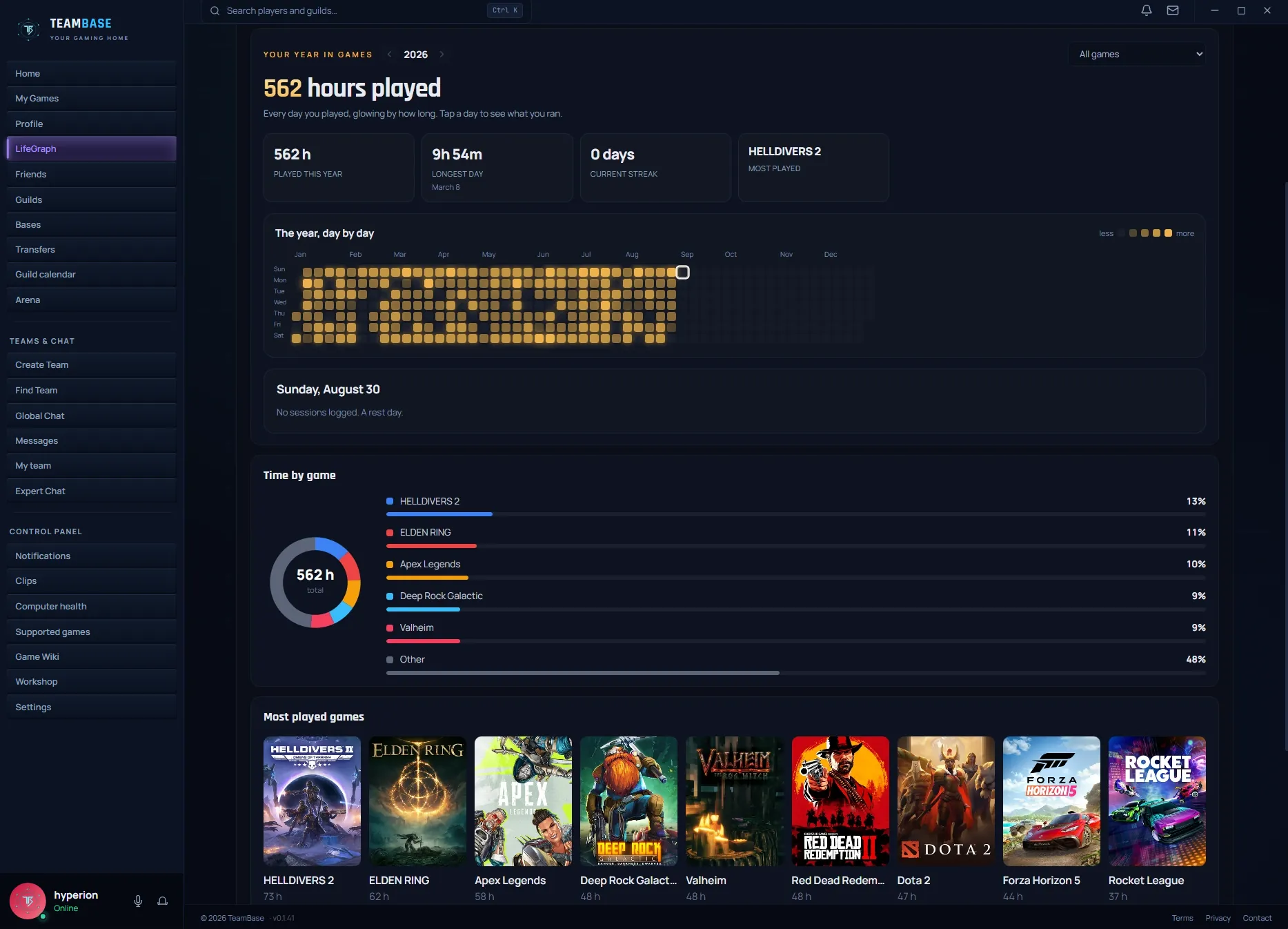
A team for the game you are playing right now is a few clicks away. You join in the app or straight from the game through the overlay, so there is no need to minimize or alt-tab. The app also logs playtime on its own, and for supported games stats as well. Your guild gets an event calendar with attendance, and after a match you and your teammates rate each other.

Missing players?
Find a team right in the game.
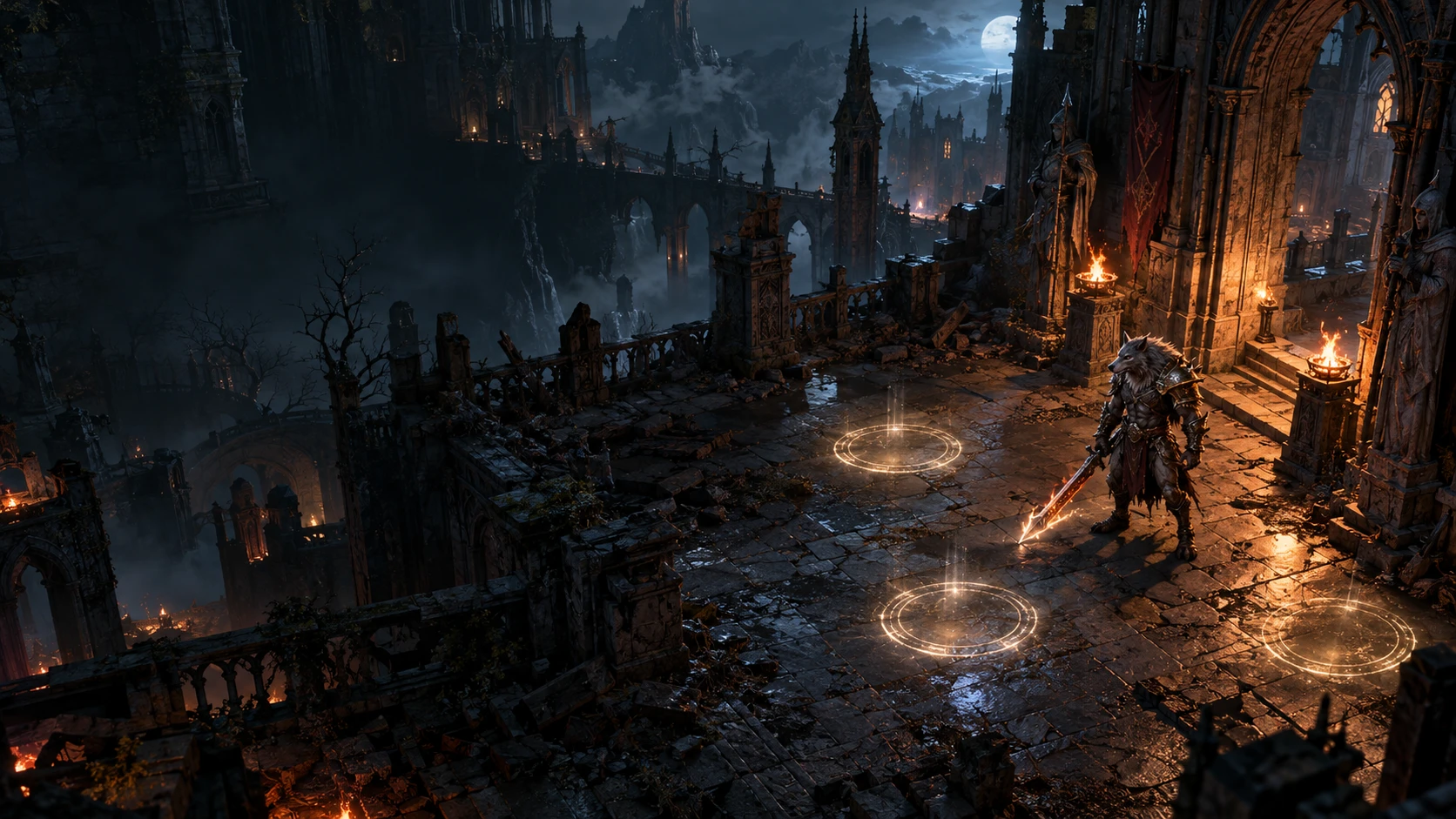
The overlay shows teams for the game that is currently running, and joining a team does not require leaving the game. When someone has an open team in the same game, it appears in the corner of the screen with a join button.
- After joining, the corner label shows the whole team and the call status. The microphone can be muted and the sound turned off directly in the game.
- The corner label with open teams can be switched off in the settings.
 TeamBase





- 01
Which teams are shown?
Only teams for the game that is currently running. They can be filtered by name and by whether the team requires a microphone.
- 02
How is a team created?
From the hub (Alt+Shift+H) via the Create team item. The options are a player count from 2 to 99, a required microphone, and open entry or entry with approval. Friends can be invited straight away.
- 03
What happens after joining?
The corner label shows the team members and who is speaking. A ready check can be started from the My team panel.
Mark a spot
and send it to the team.
Explaining in words where something is takes longer than drawing it. Two seconds of drawing replace two minutes of working out which spot or which object is meant.
- The image never steals your mouse focus, so you can carry on playing.
- Alt+Shift+F is the default key that opens the full frame.
- Only the game window is captured, never anything else.
- 01
How is a frame captured?
With the Alt+Shift+D shortcut. The app grabs one frame of the game and shows it on screen, frozen.
- 02
What can be drawn on it?
The frozen image can be marked with freehand lines or with shapes such as an arrow and a circle. The panel offers six colours, and the line thickness is adjustable.
- 03
What does the teammate see?
The image appears in a corner of the screen along with the sender’s name. It can be enlarged; otherwise it disappears on its own after a while.
Tips for the current boss
appear over the game.
Switching to a browser in the middle of a fight costs time. The Advisor opens player tips and the game wiki for the game that is currently running, directly over its picture.
- The game is detected automatically. If the detection is wrong, the game can be switched manually and the choice is remembered.
- The panel can be moved and resized. In the overlay settings, the Advisor has its own on/off switch.
- 01
How is the Advisor opened?
The Alt+Shift+H shortcut opens a hub over the game, and the Advisor is one of its items. The app detects the running game on its own.
- 02
Where do the tips come from?
Tips are written by TeamBase players, and anyone who is signed in can add to them. For over 2,500 games, pages from the game wiki are shown next to them as well, in English.
- 03
Can a wrong tip be fixed?
Every edit is saved as a new version. In the app, a tip can be rolled back to before a specific change, and any player can do that.
Save a moment
that has already happened.
The app keeps the last seconds of the game in the computer's memory. Pressing Alt+F10 saves them as a clip.
- Recording is off by default and is switched on in the settings.

- 01
How many seconds are saved?
The last 30 seconds by default. The settings offer 15, 30, 60 or 120 seconds.
- 02
What happens to the rest of the recording?
The recording is held in RAM, and older seconds are continuously overwritten. Only a clip saved with the shortcut is written to disk.
- 03
Where are the clips?
After saving, a short confirmation appears over the game. All clips are then on the Clips page in the app, sorted by day, and they can be filtered by game.
After the raid,
a card with the result.
When a supported game ends, a card with a summary of the session appears in the bottom right. For games with exact data, it also contains figures from the game. In World of Warcraft this is a list of the bosses killed with difficulty and number of attempts, in Counter-Strike 2 for example kills and headshots.
- The card appears after more than 30 minutes of play. The threshold can be changed, and the card can be turned off in the overlay settings.
- After each game the summary is saved to the account. Only the player sees it, except for a guild event the player signed up for, where it counts towards the result. Saving can be turned off in the settings.

- 01
Which games have the card?
Games from which the app receives exact data, for example World of Warcraft, Counter-Strike 2, Forza and iRacing. For World of Warcraft the data is read from a file the game writes once the /combatlog command is on. The full list is in the app under Supported games.
- 02
What is a personal best?
The card compares the figures with earlier sessions of the same game. A value better than before is shown in purple.
- 03
Can the card be shared?
The Save button turns it into a PNG image. Copy puts it on the clipboard, from where it can be pasted into a chat.
Not everything fits on this page.
The rest is in the app.
Guilds, events, transfers, the arena and expert chat are available inside the app.
Common questions
If your question is not answered here, write to us.